
Managing Assets
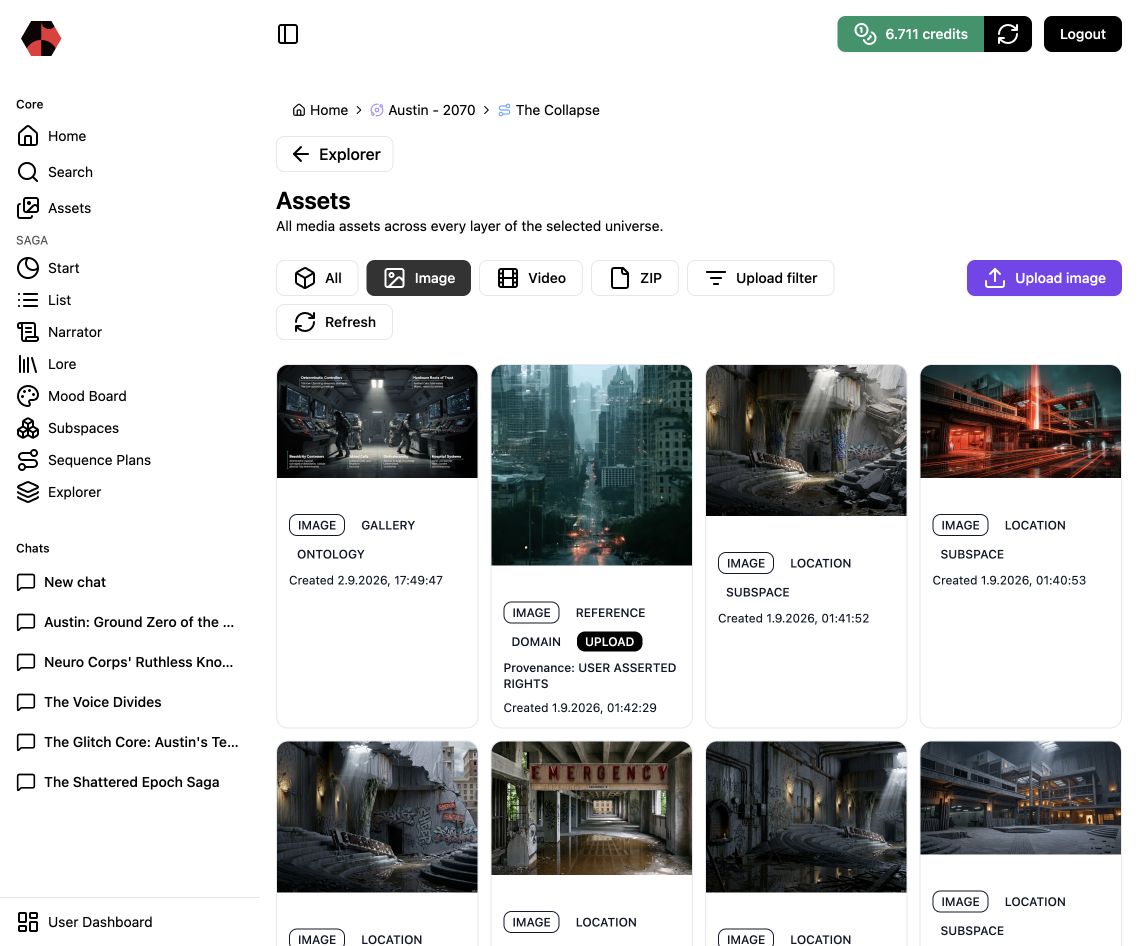
The Assets view is the media library for the selected universe. It brings generated and uploaded material from the universe, saga, story, and Subspace layers into one searchable production view.
1. Open the correct narrative context
Before reviewing media, select the universe and—when relevant—the saga or story you are working on. The breadcrumb confirms the current context. In the example Austin – 2070 → The Collapse, the library includes media from the selected narrative and its connected workspaces.
2. Filter by deliverable
Use the media filters to reduce the library to the output you need:
| Filter | What it shows | Typical use |
|---|---|---|
| Image | Generated and uploaded still images | References, concepts, characters, locations, and cinematic frames |
| Video | Rendered video clips | Reviewing motion, continuity, and usable shots |
| ZIP | Packaged sequence exports | Hand-off, post-production, or archiving |
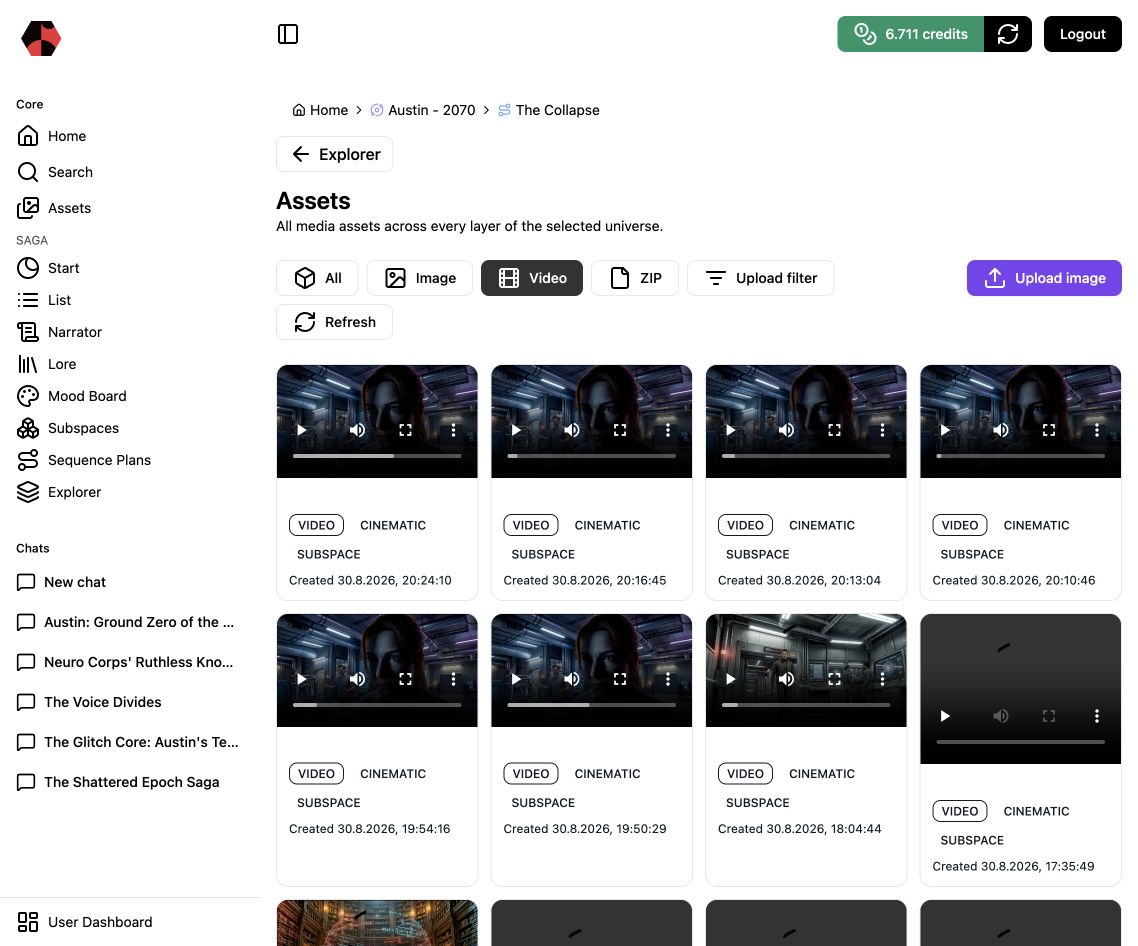
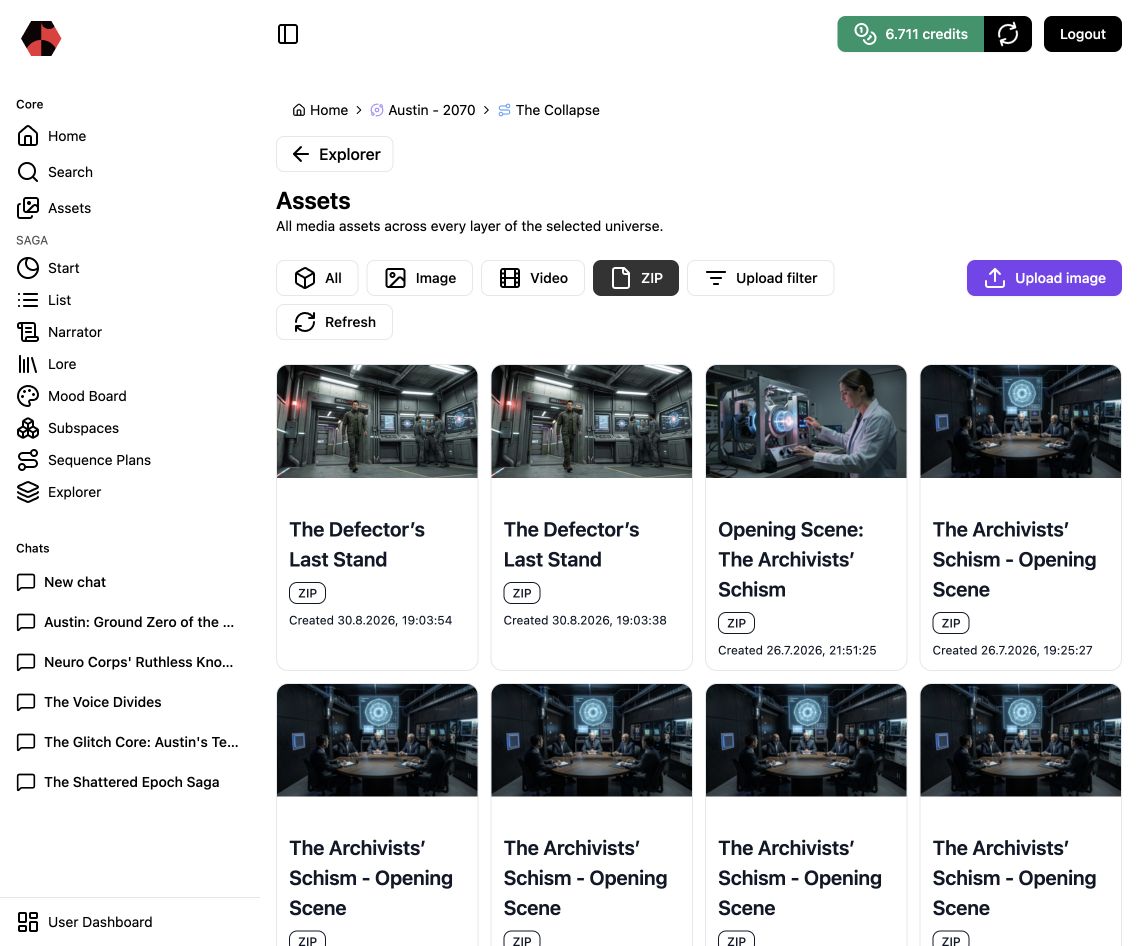
The labels on each card preserve useful context such as asset type, role, narrative layer, provenance, and creation date.
3. Review assets in context
Do not judge an asset only as an isolated image or clip. Check whether its subject, visual role, and narrative layer match the Lore element or Sequence Plan it belongs to. An attractive result can still be wrong if it contradicts a character, location, device, or established event.
4. Use ZIP exports as production packages
ZIP cards represent packaged sequence material rather than another visual variant. Use them when a Sequence Plan is ready to leave Saganode for editing, review, or another production step.
Next step
Use the Mood Board to curate visual direction, or open Sequence Plans to understand how production assets are structured.
Ready to start?
Build the next part of your world in Saganode.